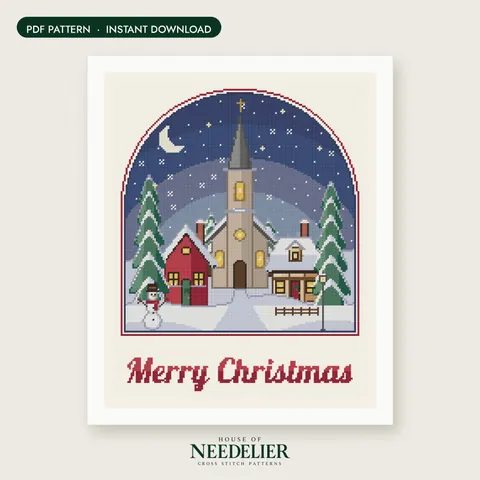
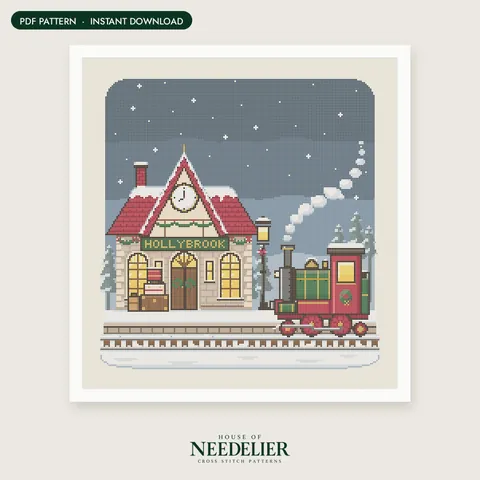
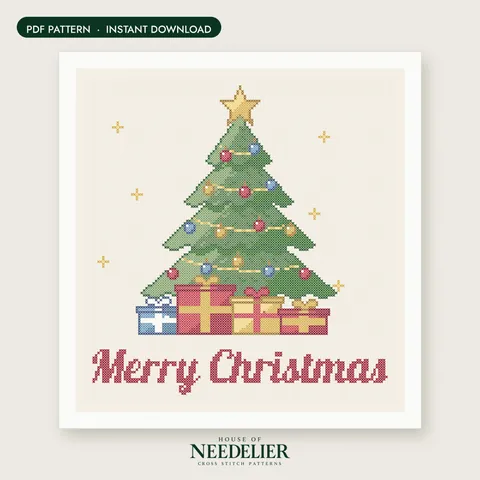
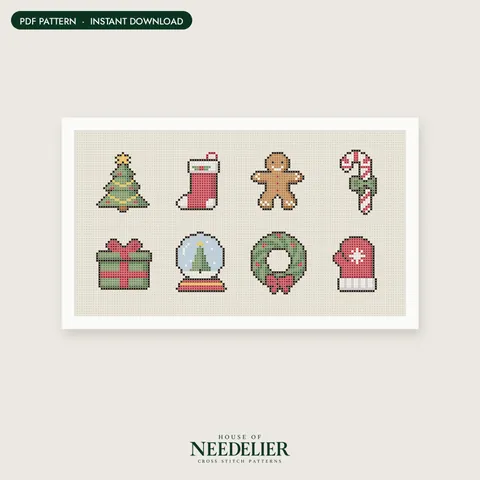
A PDF pattern arrives in seconds, never gets lost in the post and can be printed as often as you need. If you're used to paper charts or kits, it may take a project to find your favorite way of working with one. This guide covers printing at home, stitching from a tablet, and keeping your files safe.
What's inside a PDF pattern
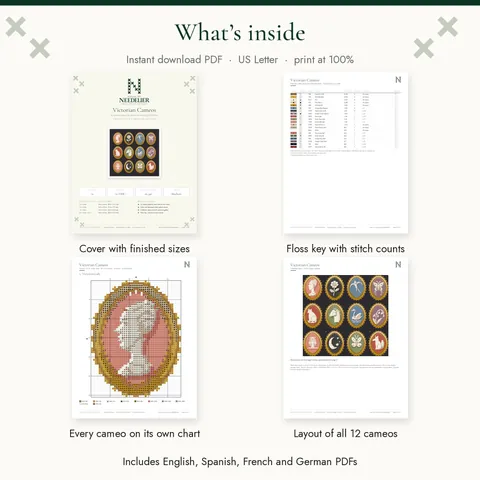
Every House of Needelier PDF has the same layout, so you'll always know where to look:
- Cover – the finished design, stitch count, number of colors and finished sizes.
- Floss key – right after the cover. One row per color with its chart symbol, DMC number and name, number of stitches, estimated skeins and a Done box.
- Page map – on patterns with more than one chart page, a small plan showing how the pages fit together.
- Color chart – the design in color, with a symbol on every square.
- Black-and-white symbol chart – the same chart with symbols only.
- Instructions – a short how-to.
Our chart reading guide explains each part in detail.
Find the floss key first
Before you print anything or buy floss, open the floss key. It's your shopping list (DMC numbers and skein estimates) and your translator between chart and thread: on the chart you see a symbol, the key tells you which DMC color it means. Many stitchers print the key even when they stitch from a screen, so they can tick colors off and keep it next to their floss. Copy the symbols onto your floss card while you're at it – see how to organize embroidery floss.
Printing at home: which pages?
You rarely need to print the whole file. A practical set is:
- The floss key – one or two pages.
- The page map, if your pattern has one.
- The black-and-white symbol chart pages – the ones you'll actually stitch from and mark up.
The cover and the color chart are nice to have but optional. Many stitchers look at the color chart on a screen to see the picture and stitch from the printed symbol chart.
Print settings:
- Choose Actual size / 100% so the chart prints exactly as designed.
- Our PDFs are US Letter. On A4 paper, Actual size works well – the page just has slightly different margins.
- Use your printer's page range to print only the pages you need.
Color chart or black-and-white chart?
| Color chart | Black-and-white symbol chart | |
|---|---|---|
| Best for | Seeing the picture, spotting shapes | Counting, marking progress |
| Printing | Uses a lot of color ink | Any printer, little ink |
| Marking with a highlighter | Hard to see | Very clear |
| Telling similar colors apart | Use the symbols | Use the symbols |
Printed and on-screen colors are never exactly like real floss, and two neighboring shades can look almost identical. Always go by the symbol and DMC number, not the color you see.
Can I enlarge the chart?
Yes – very helpful if the symbols feel small. Enlarge evenly so the grid stays in proportion:
- In the print dialog, choose a custom scale, such as 125% or 150%, and print onto larger paper like 11 × 17 inch (Tabloid) or A3.
- Many PDF readers offer a poster or tile option that spreads one page over several sheets you tape together.
- A local print shop can print your pages larger for your own use.
On a large pattern, tape the pages of each section together using the page map. Each chart page repeats a narrow strip of its neighbor in a faded tint, so you can overlap the pages exactly.
Stitching from a tablet
A tablet is a wonderful way to stitch from a PDF: no printing, and you can zoom in as far as you like.
- Open the PDF in a PDF annotation app – one with a highlighter or pen tool. Most tablets include a basic one, and there are many others.
- Make a working copy. Duplicate the file and mark up the copy, so the original stays clean.
- Zoom in on the chart until the symbols are easy to read. Showing just a few 10 × 10 blocks at a time keeps counting simple.
- Highlight finished areas with a semi-transparent highlighter, block by block, so you can still read the symbols underneath.
- Switch between drawing and scrolling. Most apps have a pen mode and a hand or view mode – scroll in view mode so you don't leave stray marks.
Turn up the screen timeout or auto-lock while you stitch, so the chart doesn't go dark between stitches. A phone works for a quick look or a small design, but for larger charts a bigger screen is much easier on the eyes.
Keep a backup copy
Treat your pattern files like photos you'd hate to lose:
- Save the original, unmarked PDF in a folder such as “Cross stitch patterns” in your cloud storage.
- Keep your marked-up working copy backed up too – it holds all your progress.
- If you bought on Etsy, you can download your files again at any time from Purchases in your Etsy account.
Our 4-language PDFs
Every pattern comes as four PDFs: English, Spanish, French and German. The charts and floss key are identical in all four; the cover, instructions and labels are translated. Download just your language, or several if you stitch with friends. Find out more in using our 4-language pattern PDFs.
Next: How to stitch large cross stitch patterns.
Frequently asked questions
Do I need to print a PDF cross stitch pattern?
No. You can stitch straight from a tablet or computer screen, using a PDF annotation app to highlight finished areas. Many stitchers print only the floss key and stitch the chart from a screen.
Which pages of a cross stitch PDF should I print?
Usually the floss key, the page map if there is one, and the black-and-white symbol chart pages. The cover and the color chart are optional.
How do I make a cross stitch chart bigger when printing?
Choose a custom scale such as 125% or 150% in the print dialog and use larger paper, or use a poster or tile option to spread one page over several sheets. Enlarging evenly keeps the grid in proportion.
Can I print my PDF pattern at a print shop?
Yes, for your own personal use. Bring the file on a USB stick or by email, and ask for the size and paper you want.
What if I lose my PDF pattern?
If you bought it on Etsy, download it again from Purchases in your Etsy account. To avoid the problem, keep a copy in cloud storage as soon as you download it.
Is the chart the same in every language version?
Yes. The charts and floss key are identical in the English, Spanish, French and German PDFs; only the text is translated.